DK PDF provides comprehensive WordPress PDF Unicode support and WordPress PDF RTL language capabilities, ensuring that your generated PDFs correctly display content in Arabic, Hebrew, Persian, Hindi, Chinese, Japanese, Korean, and hundreds of other scripts. The plugin supports two types of fonts:
- Core Fonts – Pre-packaged font collection from mPDF library with extensive Unicode support
- Custom TTF Fonts – Your own TrueType fonts uploaded directly to the plugin
Important
To use the fonts you must ensure that “Load theme CSS in PDF” is unchecked in the PDF Setup settings. If theme CSS is enabled, it may override the font settings with theme-defined fonts, preventing your selected core or custom fonts from displaying in the PDF.
Core Fonts
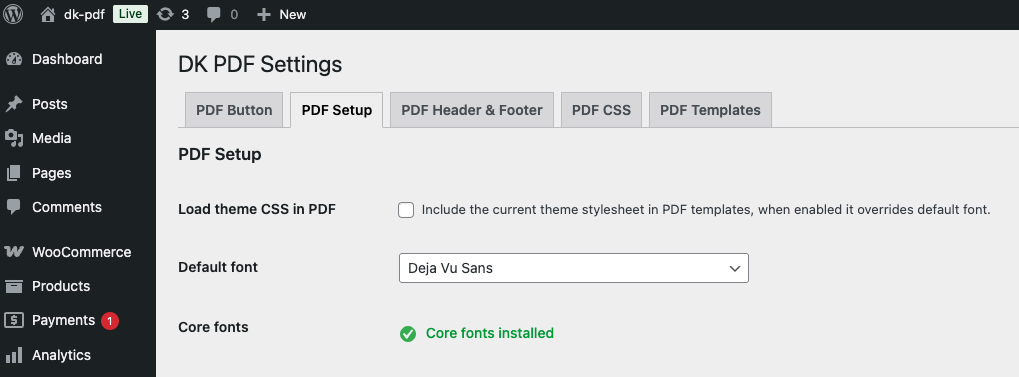
Core fonts are a curated collection of high-quality, open-source fonts maintained by the mPDF library. These fonts provide comprehensive support for:
- Unicode – DejaVu Sans, DejaVu Serif, DejaVu Mono, FreeSans, FreeSerif, FreeMono
- Indic Scripts – Lohit Kannada, Pothana2000 (for languages like Hindi, Tamil, Telugu, Kannada)
- Arabic – XB Riyaz, Lateef, KFGQPC Uthman Taha Naskh
- CJK (Chinese, Japanese, Korean) – Sun-ExtA, UnBatang
- Extended Latin, Greek, Cyrillic – Comprehensive character coverage
Custom Fonts
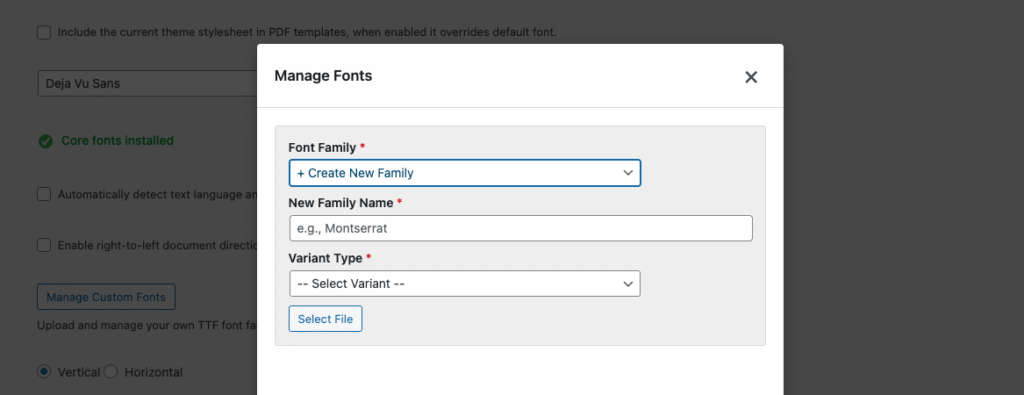
Custom fonts are TrueType (TTF) fonts that you upload yourself. These allow you to:
- Use your brand’s specific typography in PDFs
- Add specialized fonts for specific languages or scripts
- Create PDFs that match your website’s design
- Support unique typographic requirements
Installing Core Fonts
Step 1: Navigate to DK PDF Settings
- Log into your WordPress admin dashboard
- Go to DK PDF > Settings
- Click on the PDF Setup tab
Step 2: Install Core Fonts
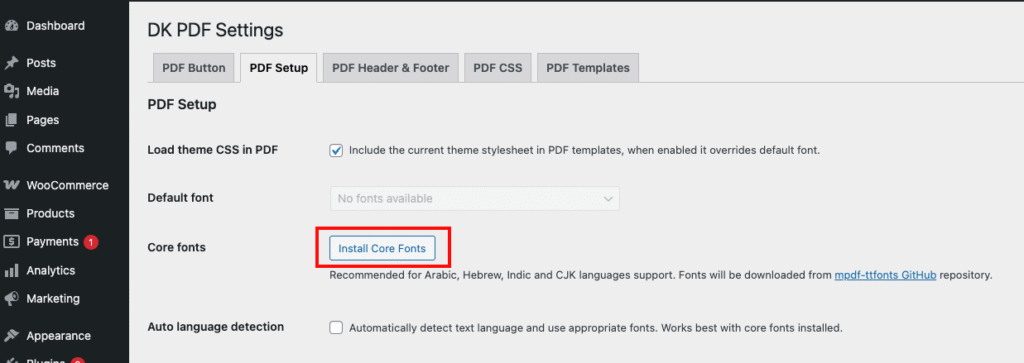
- Look for the Core fonts section
- Click the Install Core Fonts button
- Wait for the download and installation to complete (this usually takes 30-60 seconds)
- You’ll see a progress bar during the installation
- When complete, the button will be replaced with a success message: “Core fonts are installed ✓”
Step 3: Select a Core Font
- In the Default font dropdown, you’ll now see all available core fonts
- Select a font that supports your content’s language requirements:
- DejaVu Sans (Recommended for most uses) – Excellent Unicode support
- DejaVu Serif – For more formal documents
- DejaVu Sans Mono – For code or technical content
- FreeSans/FreeSerif – Alternative Unicode fonts
- Lohit Kannada – For Indic scripts
- XB Riyaz – For Arabic script
- UnBatang – For Korean text
- Click Save Changes
Your PDFs will now use the selected core font with full language support.
Uploading Custom TTF Fonts
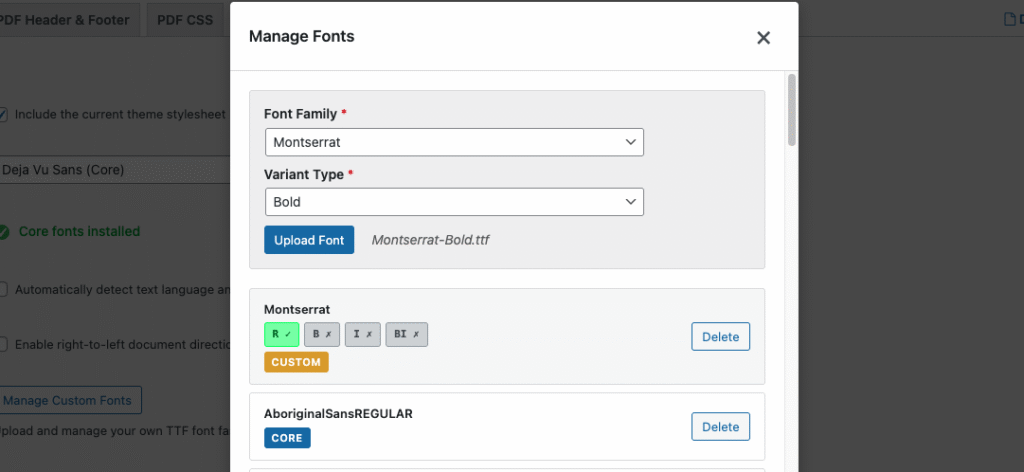
Custom fonts allow you to use your own typography in PDFs. The plugin supports TrueType Font (TTF) files organized into font families with multiple variants.
Understanding Font Families and Variants
Fonts typically come in families with multiple variants:
- R (Regular) – Normal weight, normal style – Required for all font families
- B (Bold) – Bold weight, normal style
- I (Italic) – Normal weight, italic style
- BI (Bold Italic) – Bold weight, italic style
At minimum, you need the Regular (R) variant to use a font in your PDFs. Additional variants allow the PDF generator to properly render bold and italic text.
Step 1: Prepare Your Font Files
Before uploading, ensure you have:
- TrueType Font (.ttf) files only – OTF, WOFF, WOFF2 are not supported
- File size under 5MB per file – Most TTF fonts are well under this limit
- Properly named files – The plugin auto-detects variants from filenames:
Montserrat-Regular.ttf→ Regular variantMontserrat-Bold.ttf→ Bold variantMontserrat-Italic.ttf→ Italic variantMontserrat-BoldItalic.ttf→ Bold Italic variant
Step 2: Access Font Manager
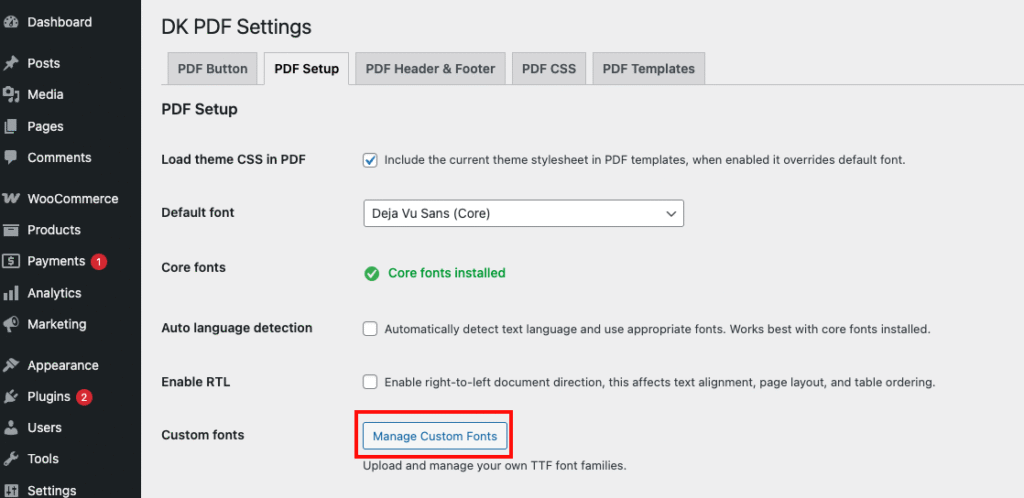
- Go to DK PDF > Settings > PDF Setup tab
- Find the Custom fonts section
- Click Manage Custom Fonts button
- A modal window will open showing your font families
Step 3: Upload Font Variants
- In the modal, you’ll see:
- Family name – Enter a name for your font family (e.g., “Montserrat”)
- Variant – Select which variant you’re uploading (R, B, I, or BI)
- Choose file – Click to select your TTF file
- Upload process:
- Click Choose File and select your TTF file
- Click Upload Font
- Repeat for each variant of your font family
- You’ll see your font family appear in the list with badges showing which variants are available (R, B, I, BI)
Step 4: Select Your Custom Font
- Close the font manager modal
- In the Default font dropdown, your custom font families will appear at the top of the list
- Select your uploaded custom font
- Click Save Changes
Auto Language Detection

When enabled, this setting automatically detects the language of your content and selects the appropriate font to ensure proper character rendering. This is particularly useful when:
- Your content includes mixed languages (e.g., English text with Arabic or Chinese phrases)
- You have multilingual websites with content in multiple scripts
- You want to ensure special characters and non-Latin scripts display correctly
How it works: The PDF generator analyzes the content and automatically switches to fonts that support the detected language’s character set. For example, if it detects Arabic text, it will use an Arabic-compatible font for that section.
Recommendation: Enable this setting if you have multilingual content or use special characters. It works best when core fonts are installed, as they provide comprehensive language coverage.
Enable RTL (Right-to-Left)

This setting enables Right-to-Left text direction support for languages that are written from right to left, such as:
- Arabic (العربية)
- Hebrew (עברית)
- Persian/Farsi (فارسی)
- Urdu (اردو)
What it does:
- Reverses text direction for RTL languages
- Properly aligns RTL text (right-aligned instead of left-aligned)
- Handles mixed content (bidirectional text) where RTL and LTR text appear together
- Ensures punctuation and numbers display in the correct positions
Important: To properly display RTL languages, you should:
- Enable this setting
- Install core fonts (which include RTL-compatible fonts like XB Riyaz and Lateef)
- Select an RTL-compatible font in the Default font dropdown
Recommendation: Enable this setting if your content includes any RTL languages. It will not affect LTR (Left-to-Right) content like English, so it’s safe to enable even if you only occasionally use RTL text.
Download Core Fonts Manually (Fallback Method)
If automatic core font installation fails:
- Visit https://github.com/Dinamiko/mpdf-ttfonts
- Click the green Code button
- Select Download ZIP
- Extract the ZIP file on your computer
- Upload all
.ttffiles to/wp-content/uploads/dkpdf-fonts/via FTP - Set file permissions to
644 - In WordPress admin, the fonts should now appear in the font selector
Verifying Manual Upload
After manual upload:
- Go to DK PDF > Settings > PDF Setup
- Check the Default font dropdown
- Your manually uploaded fonts should appear in the list
- Select a font and save changes
- Generate a test PDF to verify the font displays correctly
FAQ
Does DK PDF support Unicode and RTL languages?
Yes, DK PDF provides comprehensive WordPress PDF Unicode support through its Core Fonts Manager, which includes specialized Unicode PDF fonts for over 500 languages.
Can I use both core fonts and custom fonts?
Yes! Core fonts and custom fonts work together seamlessly. Core fonts appear in the font dropdown alongside your custom fonts. You can switch between them at any time.
Do fonts affect PDF file size?
Yes, fonts are embedded in the PDF, which increases file size. Larger font files produce larger PDFs. Choose appropriately sized fonts for your needs.
Can I use the same fonts on my website and in PDFs?
Yes, but PDFs require TTF format. If your website uses web fonts (WOFF/WOFF2), you’ll need to convert them to TTF for PDF use.
Are there any licensing concerns with fonts in PDFs?
Yes, always verify font licenses allow PDF embedding. Most open-source fonts (like the core fonts) explicitly allow PDF embedding. Commercial fonts may have restrictions.